
*Live View is available in all license levels of LP360.
The first tab (left-most) of the Live View setting dialog is for setting classification and flags.
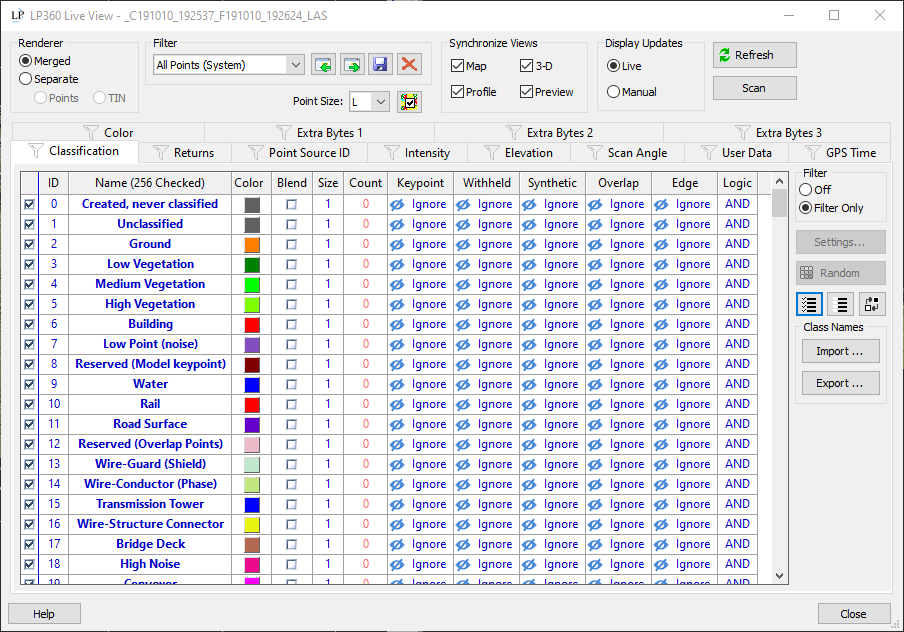
Each row of the table represents a Class as well as classification flags. LP360 automatically detects the number of classes supported by the current active LAS layer (32 or 256) and displays a corresponding number of rows in the Classification table.
The columns of the Classification table have the following meanings:
Check Box – if checked, this row is enabled (turned on) for the filter. Note that just because a row is enabled, it does not necessarily mean you will see points of this Classification in the display. Reasons that you may not observer points being displayed include:
There are no points of this Classification in the current view.
The Symbology is set to the same color as the background color (in this case the points are being displayed; you just can’t see them)
The conditions of the flags are not being met. For example, if you have Model Key Point set to TRUE for the Ground class but no points have this flag set, you will not see any Ground points in the display.
ID – Classes in LAS are numbered from 0-31 or from 0-255, depending on the particular LAS format.
Name – A human readable name that represents the Class ID. For example, Ground is the ASPRS standard for Class 2. Note that Name is not stored in the LAS file itself; points are known only by their ID number.
Color – the rendering color when a View is set to display by Classification
Size – The size of the displayed point when the Point Size option is set to Legend. Note that each Class can have a different size when using the Legend display mode.
Count – The number of points of this class in the Active LAS Layer. If this number is displayed in Red, it is not up to date. You can refresh by pressing the Scan tool.
Keypoint, Withheld, Synthetic, Overlap – These are classification flags. Note that not all flags are supported in all LAS formats. Flag filters can be set to one of three conditions:
Ignore – do not use this flag value in display filtering
Set – the flag must be set to meet the filtering criteria
Clear – the flag must be zero (not set) to meet the filtering criteria
Logic – This determines how the flag combinations should be treated. If AND, then all flag conditions must be met for the point to pass the filter. If OR, only one condition must be met. Of course, any flag set to Ignore is not considered, regardless of the Logic setting.
You can sort the Classification table by any column by pressing the column header.
LAS versions 1.0 and 1.4 support 256 different classes (numbered from 0 to 255) whereas LAS 1.1, 1.2 and 1.3 support 32 different classes.The number of supported classes is now automatically determined by Live View.
Classes are turned off and on by checking/unchecking the desired rows in the Class table.
Choices are immediately applied to all views that are using the filter that is currently under modification.
You can quickly turn on all Classes being used in the project by pressing the “All Classes being used” tool.
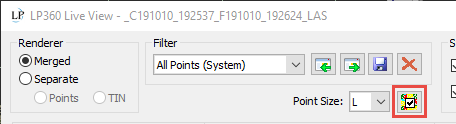
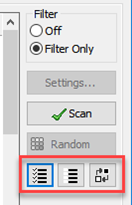
The Classification tab has several tools to speed common filter settings. These tools are to the right of the Classification filter buttons and are described in the table below.
|
Tool |
Name |
Function |
|
|
All classes ON Toggle | Toggles all selected rows ON |
|
|
All classes OFF Toggle | Toggles all selected rows OFF |
|
|
Invert ON/OFF State | Inverts the ON/OFF state of all selected rows |
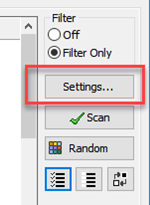
The Settings tool is used to modify the symbology and flags of classes. Select the row(s) you wish to modify and press the Settings tool. Note that you can quickly reach the settings for a single row by double clicking the row.
This invokes the Class Settings dialog.
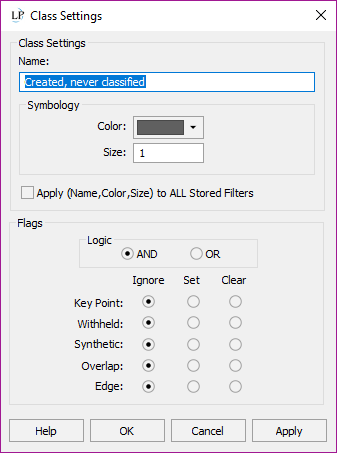
The basic settings are:
Class Name – Key in the name you would like to use for this Class. Note that you can override the default (ASPRS reserved) names if desired. This field is disabled if you had more than one Class row selected when the Settings tool was pressed.
Color – Choose the color that will be used when a view is in the Display by Classification mode
Size – this is the point size that is used when the Point Size selector is set to Legend (“L”)
The Flags settings control how the filter responds to classification flags:
Logic – AND/OR. If set to AND, the state of all flags that are not set to Ignore must be True. For example, if you set Key Points to Set and Withheld to Clear, only points with both the Key Point flag set and the Withheld flag Clear will display. If set to OR, only one of the set states need be true for the point to pass the filter.
Flags:
Ignore – do not consider this flag when filtering
Set – the bit associated with this flag is set to a value of 1 (the TRUE state)
Clear – the bit associated with this flag is set to a value of zero (the FALSE state)
Allows you to import and export Class Names in an .xml file.
When exporting, after confirming file location and name you’re also given the option to set the Custom Class Names as a default for all new projects.
Any exported XML can be imported and set as the default class names for all new Projects on the Project Settings dialog.
Note – If you turn a class off or on and nothing seems to happen in the view, check the following:
Ensure that the toggled class exists in the data set (you can use the Auto Select function to scan the data set).
Ensure that the View selection at the lower left of the Live View dialog has the view that you expect to be modified checked.
Ensure that some other filter criteria is not suppressing the display. All tabs of the dialog apply to the view so, for example, if you have Returns set to show only “first of many” returns and none of these returns are in the ground class, then you will not see a change in the display as you toggle the ground class off and on.
Ensure that you have not set the Flags filter such that it is suppressing the display of points. For example, if you have Key Points set on the ground class but no Model Key point flags have been set in the data, then you will see no points if you select the ground class filter.
Ensure that the Renderer you are modifying is currently displayed. For example, if you have Renderer set to TIN but you have the display mode set to Points (on the view toolbar), you will not see your changes until you switch the display mode to one that uses the TIN Renderer (TIN, Points on TIN, Wireframe).


