
The Transparency dialog allows you to change the transparency level of a selected layer from between 0% (No transparency) and 100% (Invisible).
Open the Transparency dialog (shown below) by right clicking a layer within the table of contents and selecting 'Transparency' from the menu that appears.
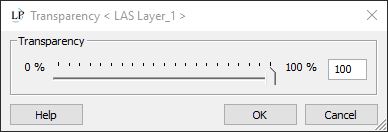
In order to change the transparency of the selected layer (shown in
the dialog title), drag the button  in the slider
control to the left or right to decrease or increase transparency
respectively. Alternatively, enter an integer value between 0 and 100
into the text box to the right of the slider area to set an exact percentage.
in the slider
control to the left or right to decrease or increase transparency
respectively. Alternatively, enter an integer value between 0 and 100
into the text box to the right of the slider area to set an exact percentage.