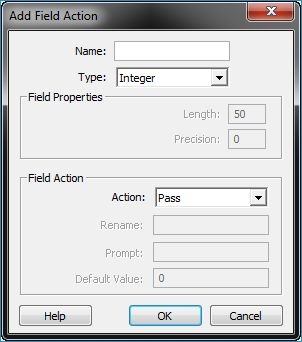
Clicking the '+' (add) or
the Edit Field button  command in the Edit
Fields Dialog will bring up the Add/Edit
Field Dialog. The Add/Edit
Field Dialog allows you to add new fields and edit existing
ones.
command in the Edit
Fields Dialog will bring up the Add/Edit
Field Dialog. The Add/Edit
Field Dialog allows you to add new fields and edit existing
ones.
1. Open the Add/Editing Fields
dialog by clicking the '+' (add)
or the Edit Field button
command in the Edit
Fields Dialog.
2. Select the following ways to alter the fields:
Name Edit Box - Allows you to key-in the name of the field.
Type Box - Allows you to set the data type of the field. Allowed options are 'Text', 'Integer', 'Double', 'Date' and 'Boolean'.
Field Properties Group Box - Contains 'Length' and 'Precision' text boxes to enter the length and/or precision based on the data type.
Field Actions Group Box - Allows you to set the actions on the field.
Action Box - Allows you to select the action to be performed for the field. The allowed options in the box are 'Prompt', 'Pass', 'Remove', 'Set', and 'Rename'.
Rename - Asks you to rename the file.
Prompt - Asks you for the attribute value of the field.
Default Value - Allows the point cloud task to use this value as default in 'Set' or 'Prompt' cases.