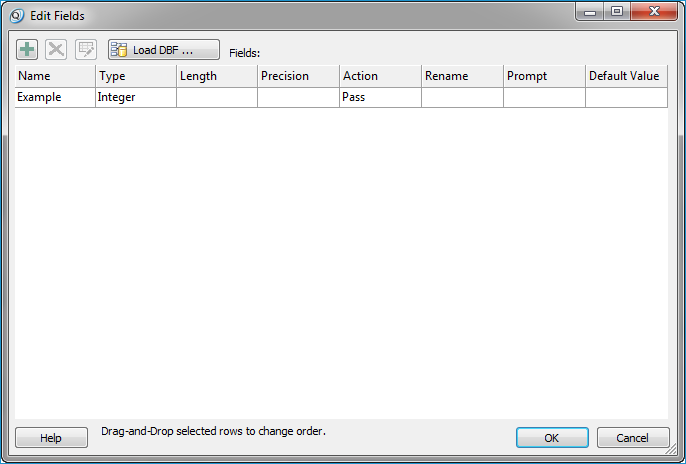
About Editing Fields
Clicking
the “Edit Fields…” button on the main
property page shows the Edit Fields
dialog.
The Edit Fields dialog allows
you to import the schema from an existing DBF
file, add new fields, edit existing fields, and remove the existing
fields.
How to Edit Fields
1. From the 'Main Property' page of the Attribute
Editor Point Cloud Task, click the Edit
Fields button to open the Editing
Fields dialog.
2. Select the following ways to alter the fields:
- +
(add)
- - Clicking the '+' (add)
button brings up the Add
Field Dialog.
- Edit
Field
- - Selecting a row in the 'Fields'
Grid and clicking the Edit Field
button
 brings up the Edit
Field Dialog.
brings up the Edit
Field Dialog.
- -
(remove)
- - Clicking the 'X' (remove)
button removes selected fields from the grid and as well as from
the output DBF file.
- Load
from DBF...
- - Clicking the Load
from DBF button brings up the
Windows standard Open
Dialog to select the DBF file and populate
the grid below with the name, type, length, and precision from
DBF
file.