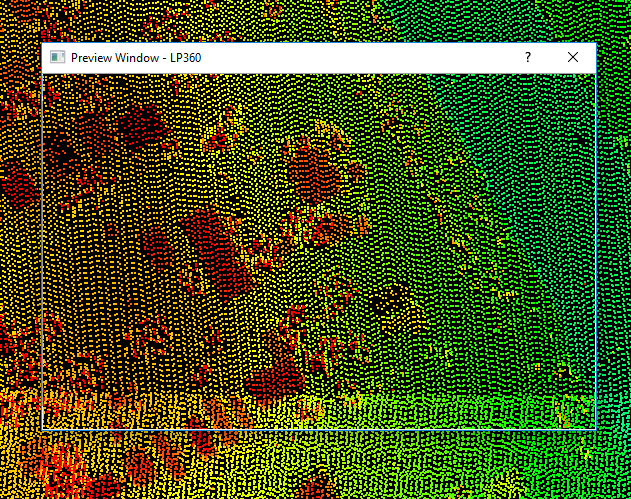
Moving the Preview Window around in the Map Window
In order to evaluate the results of a task on different parts of a project,
the Preview Window must be navigated around in the map window. Once the
Preview Window is "dropped" onto an area in the map window,
the points within the rectangular guide are loaded into the preview.
To move the preview in the map window, left-click on the caption or title
bar on the Preview Window. Drag the window to the desired location in
the map. As the Preview Window is dragged, the window will become empty
and transparent to allow the user to see through the window. A rectangular
guide will be displayed as the window is dragged. The rectangular guide
defines the location of points that will be loaded into the Preview Window.
The size of the rectangular guide is determined by the magnification level
currently set for the Preview Window.
When the rectangular guide is over the area of interest, release the left
mouse button. The points within the guide will be loaded into the Preview
Window. If points were not loaded and a message is displayed at the bottom
of the Preview Window, then too many points were attempted to be loaded
into the preview. Zoom in on the map window or increase the magnification
level to decrease the effective size of the rectangular guide. The Preview
Window loads 100% of the points into the window, but will not exceed the
"Number of points to retrieve from the LAS
file(s) with each refresh" setting located on the performance property
page for the main view.
Learn how
to modify the magnification level
Learn
how to open the viewer properties
Picture of Moving the Preview Window