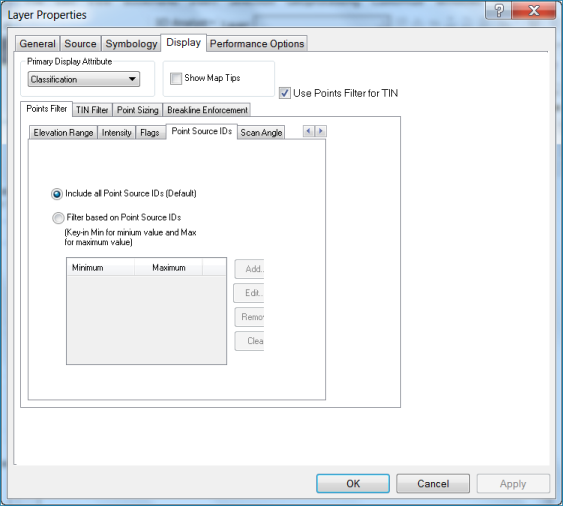

The Point Source ID Property page allows you to customize settings for filtering points based on their Point Source ID values for display or for performing point cloud tasks, similar to a Class filter or Return Value filter.
Open the Properties dialog box by clicking
 on the
LP360 toolbar.
on the
LP360 toolbar.
Click the Display tab, then click either the Points Filter or TIN Filter tab.
Click the Point Source IDs tab.
On the Point Source IDs property page, set one of the following options based on how you want the ID values to be filtered.
This option will include all points with point source IDs to display or to process a point cloud task. Adding and removing points is not an option when including all scan angles.
This option allows you to enter the ranges of minimum and maximum Point Source ID values to display or to process a point cloud task. The Add button is used to enter minimum and maximum values, and you may enter more that one row of values. Please see the description of the descriptions of the Add, Edit, Remove, and Clear buttons and the minimum/maximum values guidelines below.
Add - You must use the Add button to enter minimum and maximum Point Source ID values in new rows. Click Add for each new row you add.
Edit - Clicking this button allows you to edit the values within a row from the adjacent list view.
Remove - Removes a row from the adjacent list view. This means the minimum and maximum values in the row are removed from the Point Source ID Filter.
Clear - Removes all rows from the adjacent list view. This results in a filter with no minimum and maximum values.
Guidelines
You may use any valid integer as a minimum value.
You may type "Min" (not case sensitive) to set the minimum value of all existing points.
The minimum value should be less than maximum value (if a maximum value has already entered).
You may use any valid integer as a maximum value.
You may type "Max" (not case sensitive) to set the maximum value of all existing points.
The maximum value should be greater than the minimum value.
You may specify any number of minimum and maximum value pairs; i.e., there is no limit to the number of minimum/maximum value rows that you can have.