
Modifying the LIDAR Layer Display Performance Options
1. Open the Properties dialog box by clicking the Layer Properties button  on the LP360 toolbar.
2. Click the Performance Options tab.
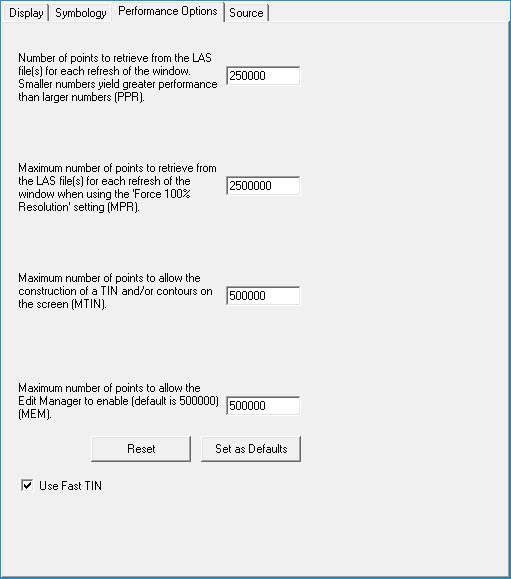
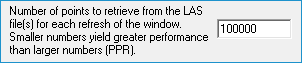
3. To change the Number of Points per Refresh, enter a whole number greater than zero and less than the Maximum Point Cache Size input (step 4 below) and also less than or equal to the Maximum Points to TIN/Contour input (step 5 below). Learn more about the points per refresh.
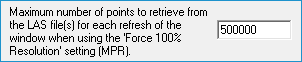
4. To change the Maximum Point Cache Size, enter a whole number greater than the Points per Refresh Value input (step 3) and greater than the Maximum Points to TIN/Contour Value input (step 5). This sets the number of points to use when you use the Force 100% Resolution command  to draw all the points to the map. Learn more about the maximum point cache size.
5. To change the Maximum Points to TIN/Contour, enter a whole number greater than the Number of Points per Refresh input (step 3) and less than the Maximum Point Cache Size input (step 4). Learn more about the maximum points to TIN/contour.

6. To change the maximum number of points that is allowed before the Edit Manager is enabled, enter a whole number greater than the Points per Refresh (step 3) and Maximum Points to TIN/Contour (step 5). The Edit Manager controls undo and redo operations. If the number of points being classified is greater than the number you enter here, then the Edit Manager will be disabled. Learn more about the maximum points for Edit Manager to enable.

7. Select or clear the Use Fast TIN check box, depending on your preference of speed and uniformity of the grid.

- The Fast TIN uses the Divide and Conquer method to generate a TIN. It generates quicker but does not TIN a uniform grid.
- The Incremental method of generation is used when Use Fast TIN is not selected. It triangulates a uniform grid but takes longer to generate than the fast TIN method.
Notes1) At any time, you can click Reset to automatically enter the performance parameters with the factory default values.2) You can use the Set as Defaults button to set the parameters you have entered as the system default values. Any newly added layers will have these properties applied by default until you modify them. These are "system" defaults, which means they will apply to the current project as well as any other projects opened in LP360. |