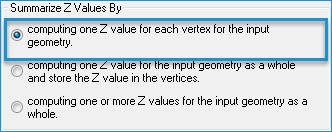
About calculating one Z value for each vertex for the input geometry
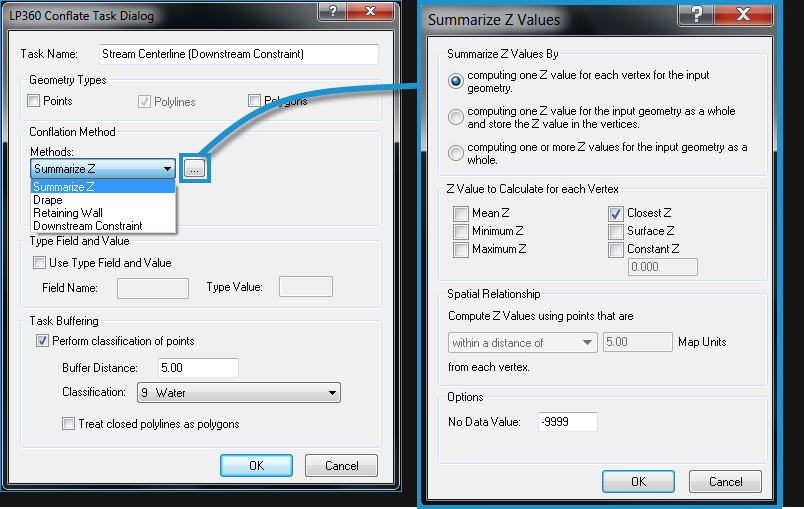
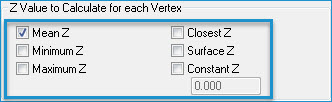
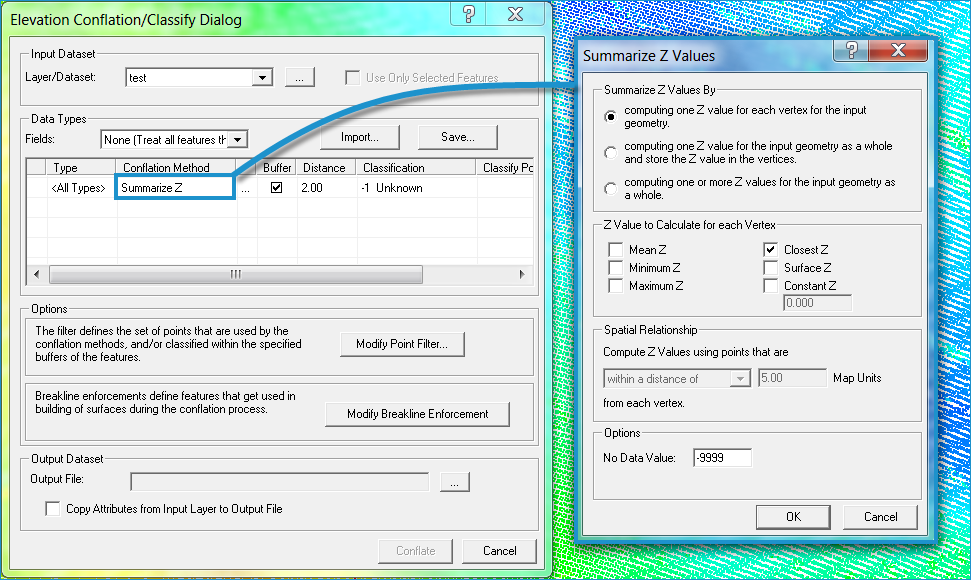
Calculating Z values for each vertex computes a single value for each vertex in the input geometry. This option probes into the points using either the points themselves or a TIN (for the Surface Z option) and creates an independent Z value for each existing vertex on the line. The Z value does not get stored in the Attribute table of the feature for this option.The Z value is determined based on the Z Value you choose in the Summarize Z Values dialog box.
- Mean Z - The Z value is summarized within a range.
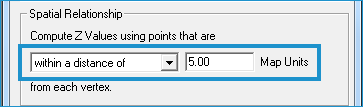
- Minimum Z, Maximum Z, and Closest Z - All of the points within this distance are involved in the requisite computation on a per vertex basis.
Note Mean, Minimum, or Maximum values are defined by selecting a spatial relationship between the input geometry and the LAS points. Learn more about selecting a spatial relationship. - Surface Z - This
is the TIN Surface elevation from the LAS points and is essentially
a drape of the TIN.
- Constant Z - You can assign an elevation by keying in a specific value.
This method of Z computation is generally useful for creating Z values that are off the TIN, which is what distinguishes this method from the Drape method.
Since this method stores Z on the vertex feature, it must have a 3D feature file. The feature file can include Measure ("M") values on the vertices but they will not be used.
Learn more about the Summarize Z Values dialog and the other Summarize Z Conflation options
Example of using the "by vertex" option
Surface Z calculated for each vertex of the input geometry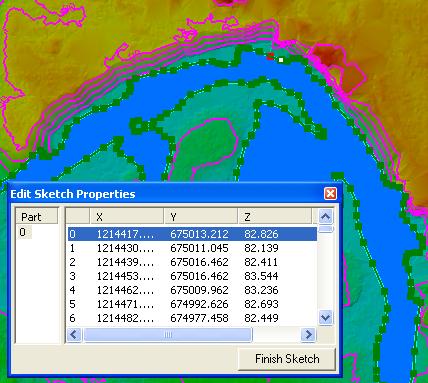
 button on the LP360 Classify toolbar. Once you select
the Layer or Data Set and then the
features (in the Fields drop-down) to use to use
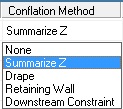
in the conflation, you will select a Conflation Method
for each listed feature in the Data Types table.
button on the LP360 Classify toolbar. Once you select
the Layer or Data Set and then the
features (in the Fields drop-down) to use to use
in the conflation, you will select a Conflation Method
for each listed feature in the Data Types table.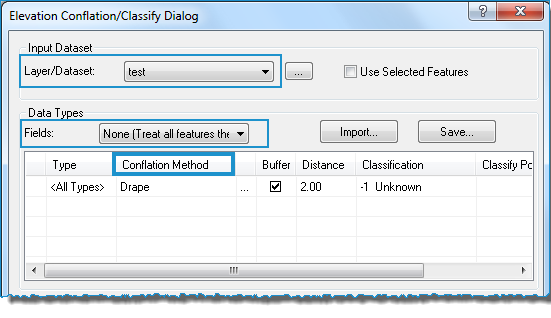

 button on the LP360 Digitize
Breaklines toolbar.)
button on the LP360 Digitize
Breaklines toolbar.)
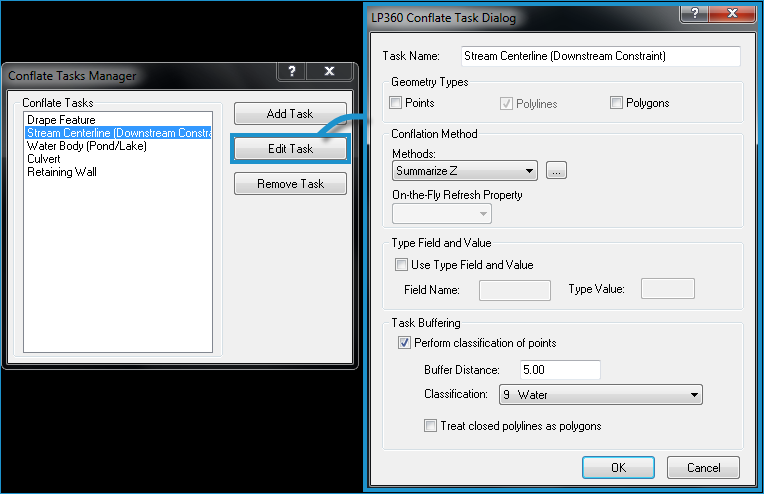
 button. The Summarize Z Values
dialog will open.
button. The Summarize Z Values
dialog will open.