The following steps describe the process for updating the firmware of the TVGO116 and TVGO132. The TrueView Go can be updated automatically using the TVGO App or manually.
Latest version: 1.8.2 released December 2025
Update using the TVGO App
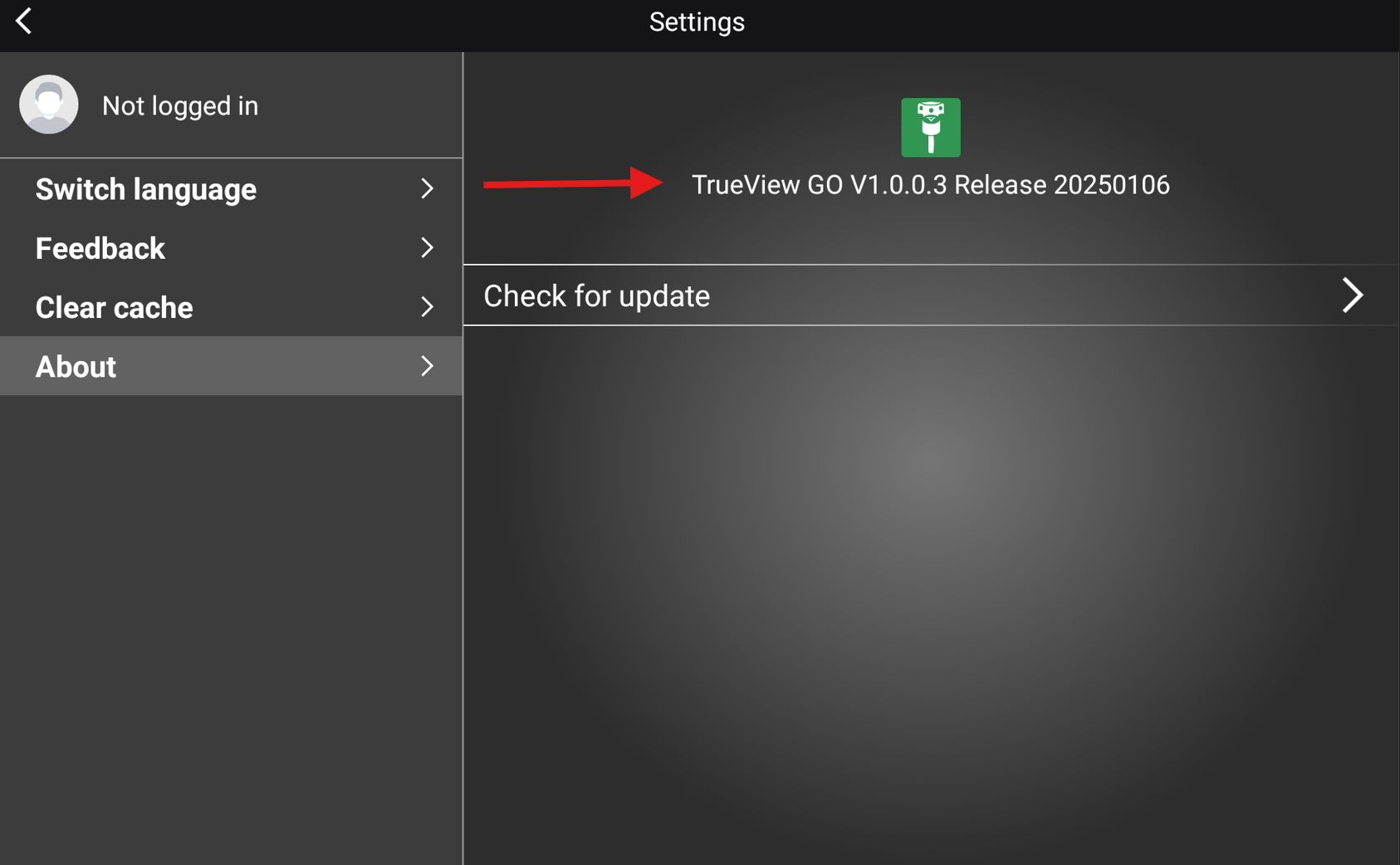
- Make sure to have the TVGO App version 1.0.0.2 or newer.
- To check the version of the TVGO App –> Select “Settings” –> About
- If you are running an older version than v1.0.0.2, please contact GeoCue Support.
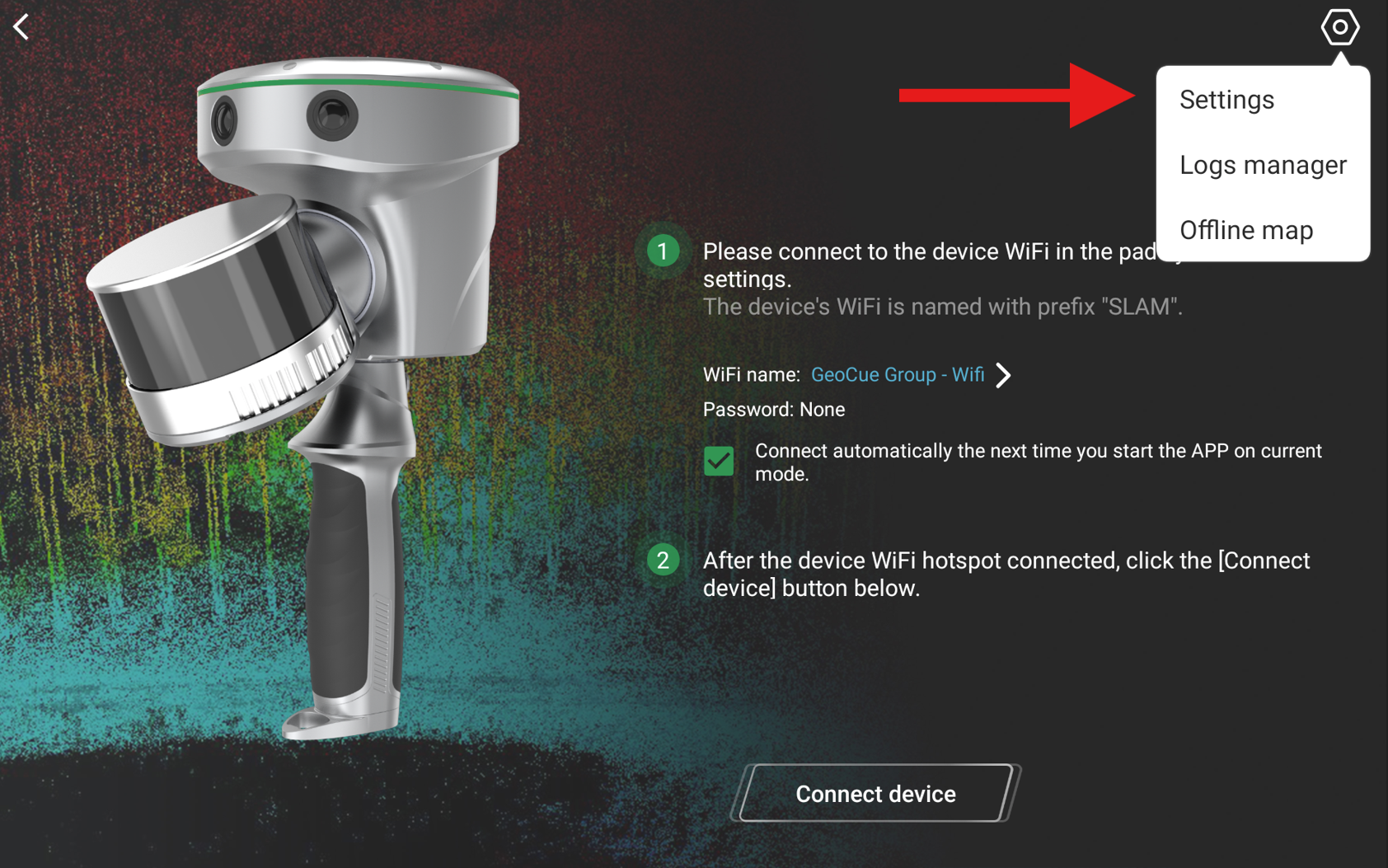
- Make sure you have internet on the tablet in a different way than via Wi-Fi. The best way is to use a SIM card with internet.
- Open the TVGO App.
- Switch on the TVGO sensor.
- In the TVGO App –> Connect device.
- The firmware section will show the actual firmware of the TVGO sensor.
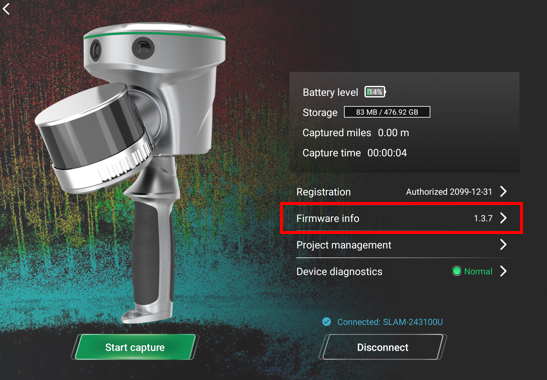
- If you have an internet connection and there is a new firmware update, a notification will appear in the Firmware info. Select the notification –> Update firmware.
Manual / Offline Update
It is also possible to manually install a new firmware in the case where the tablet does not have internet or the TVGO App does not detect the latest firmware.
- Contact GeoCue Support to get the latest firmware version.
- Download the firmware package to your computer –> Unzip the file.
- Connect the TVGO device to your computer using the USB-C cable, make sure the device is off.
- Copy the new firmware in the sensor internal memory. Place the .bin file on the root level of the TVGO drive.
- Unplug the TVGO from the computer
- Switch on the TVGO –> wait 60 for the sensor to update –> You’ll see it flashing a fast red/green which means it’s updating
- Open the TVGO App –> Connect device –> Check the firmware version