This article explains how to correctly set up and operate the Insta360 panoramic camera with the TrueView Go device, how to collect and download the data, and how to prepare it for processing in LP360. It includes step-by-step instructions for activation, configuration, installation, data capture, and file preparation. It is recommended to check the TrueView Go hardware users guide for more details on how to use the TVGO.
1. How to set up the Insta360
Before using the Insta360 with the TVGO system for the first time, the camera must be activated and its internal time synchronized.
Compatible Insta360 cameras
The TVGO is compatible with the Insta360 X4 model.
Camera Activation
To activate the camera:
- Download the Insta360 App on your mobile device.
- Enable Wi-Fi and Bluetooth on the phone.
- Open the Insta360 app.
- When prompted with “insta360Enterprise wants to join the wireless LAN…”, tap Join.
- The camera will prompt to connect to the phone –> press OK to complete activation.
Time Calibration
If the camera has not been used recently, the internal clock may become unsynchronized. Simply open the Insta360 app and connect to the camera, the camera will automatically synchronize its time with the phone.
How to Install the Insta360 to the TVGO
- Remove the TVGO device handle.
- Attach the camera bracket to the device shell and re-attach the handle.
- Slide the brace over the scanner and into the bracket; tighten screws.
- Mount the Insta360 on the pole and secure it.
- Align the mount pole with the locking pin inside the bracket.
- Slide and lock the bracket to finish installation.
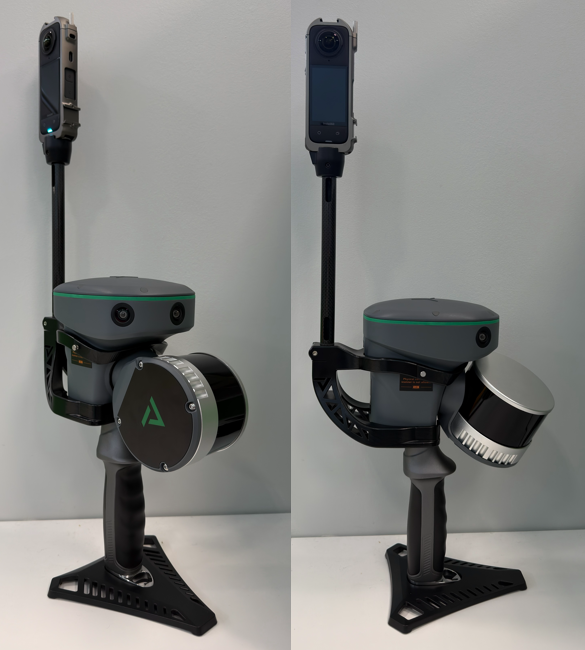
2. Configure the Insta360
Camera Parameters Configuration
Set the camera to the following recommended parameters for TVGO workflows:
- Mode: Natural wide-angle MEGA
- Resolution: 5.7K
- Frame rate: 30 fps
- Color mode: Standard
- Exposure compensation: 0
- Low-light stabilization: Off
- White balance: Auto
- Exposure: Balanced automatic
- Encoding: H.265 (high-efficiency)
- Bitrate: Standard
- Sharpness: Medium
- Anti-flicker: Auto
- Photo stitching: Off
These settings are the default on first activation, but must be checked before each TVGO mission.
Compatibility Requirements
To enable panoramic coloring, MESH modeling, and 3DGS functions:
- TVGO firmware: ≥ 1.7.2
- TVGO app: ≥ 1.4.1.2
Ensure batteries of the TVGO device, tablet, and Insta360 camera are fully charged.
3. Data Acquisition Workflow with the TVGO & Insta360
Start of the Cycle
- Turn on the Insta360 panoramic camera.
- Turn on the TVGO device.
- Connect the TVGO App to the camera via Bluetooth.
Choose Acquisition Mode
Choose one of the two supported recording modes:
a. Time-Lapse Mode (5.7K / 1s)
- Supports: Panoramic coloring, MESH modeling
- More efficient processing
- Does NOT support 3DGS modeling
b. Video Mode (5.7K / 24fps)
- Supports: Panoramic coloring, MESH modeling
- Supports: 3DGS modeling
- Produces larger data volumes
During the Cycle
- Start acquisition from the TVGO interface.
- Wait until the data is fully saved before powering off the device.
4. Downloading and preparing the cycle
After acquisition:
- Power off the camera and TVGO before copying data.
- Connect the TVGO device to a computer.
- Locate the project folder under ALPHA_ALL and copy it.
- Copy the .insv files from the camera’s storage.
- Paste the .insv files into the TVGO project directory under:
IMG\Camera4
Tip: If you do not know what file matches with cycle. Inside the camera4 folder check the file:
@@2025-10-06-140827_Camera4.txt
Inside this file you will find the exact name of the Insta360 file.
5. How to Process the Insta360 data in LP360
It is the same workflow as the TrueView Go, however during SLAM Processing the “Street View” option will be available. It is recommended to check the TrueView GO Processing article to learn more. In the following section there is a summary of the steps required. It requires a LP360 v2025.2 or newer.
Once the data from the TVGO project and the .insv files from the camera are combined:
Prepare Folder Structure
Ensure the project directory contains:
- LiDAR data folders produced by TVGO
- Panoramic video & images in IMG\Camera4
Import Into LP360
- Open LP360.
- Create or import a new project dataset.
- Add the TVGO project folder.
- LP360 will automatically detect the
.insvfiles and associate them with the trajectory. - The Street View option will be available
Processing Steps in LP360
- Run SLAM Processing
- Run Modeling
- Generate MESH or 3DGS models, depending on the camera mode:
- Time-lapse: Colorization + MESH
- Video: Colorization + MESH + 3DGS
Typical outputs:
- Colorized LAS
- MESH models
- 3D Gaussian Splat models.