The TrueView Web User Interface provides a user interface (UI) of the TrueView payload through any standard web browser. With this interface the user can monitor the system operation, readiness for data collection, and change settings. It also helps with troubleshooting by providing additional information about errors and issues. For installation and operation of your TrueView 3DIS, please refer to the hardware users guide for your applicable model number. This UI is available for the following systems running the latest firmware:
- EasyOneLiDARUHR/UHRLite
- EasyOneLiDARUHR+
- TV435vB/515vB/5515vC
- TV535/535vC
- TV625/655/660/680 (mdLiDAR3000TripleCam)
- TV720
- TV545
- TV585
TrueView firmware v2.2.0-21 (ffb8a694) added payload profiles, which can be saved and loaded onto a TrueView payload to quickly change parameters and settings.
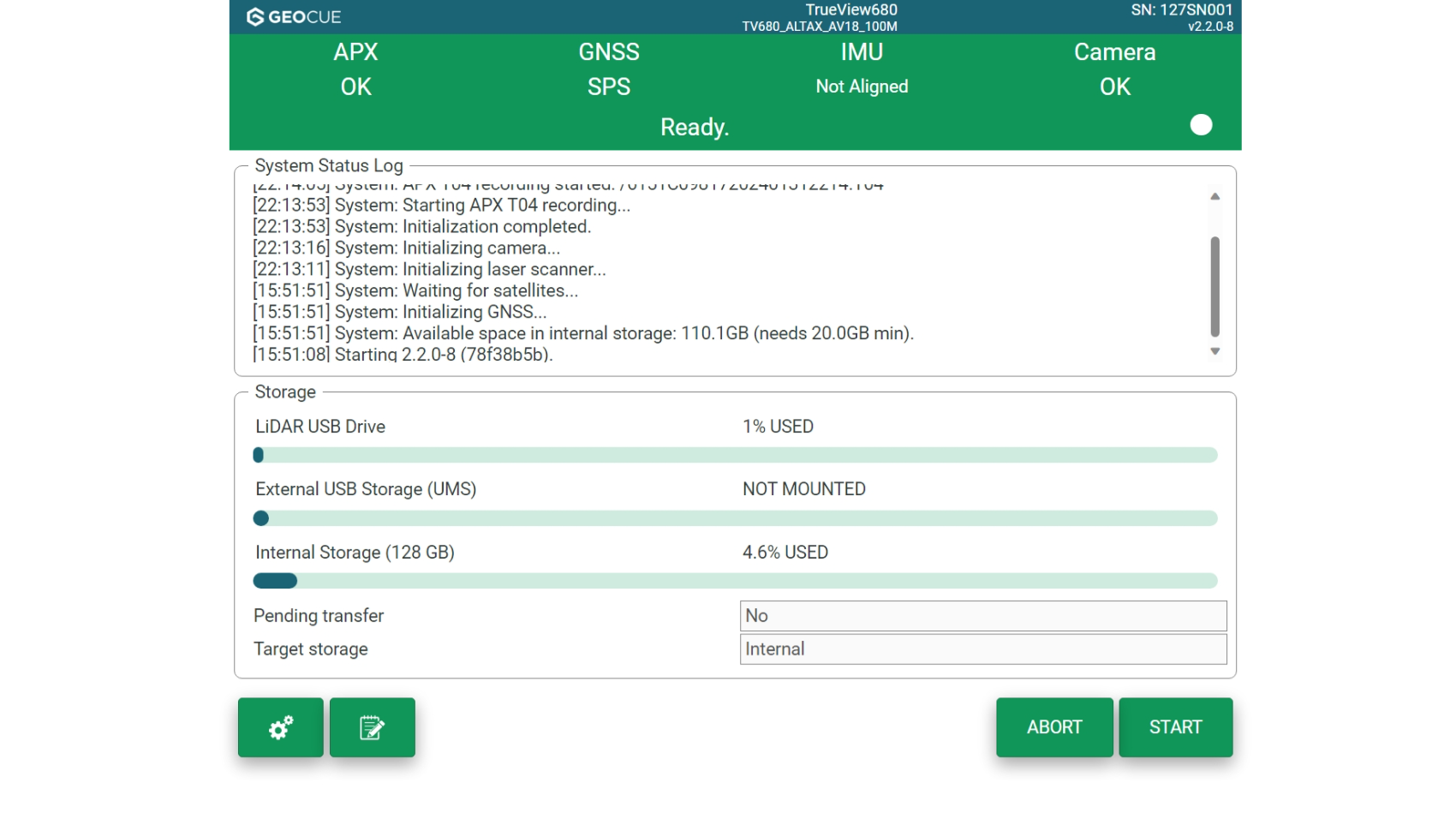
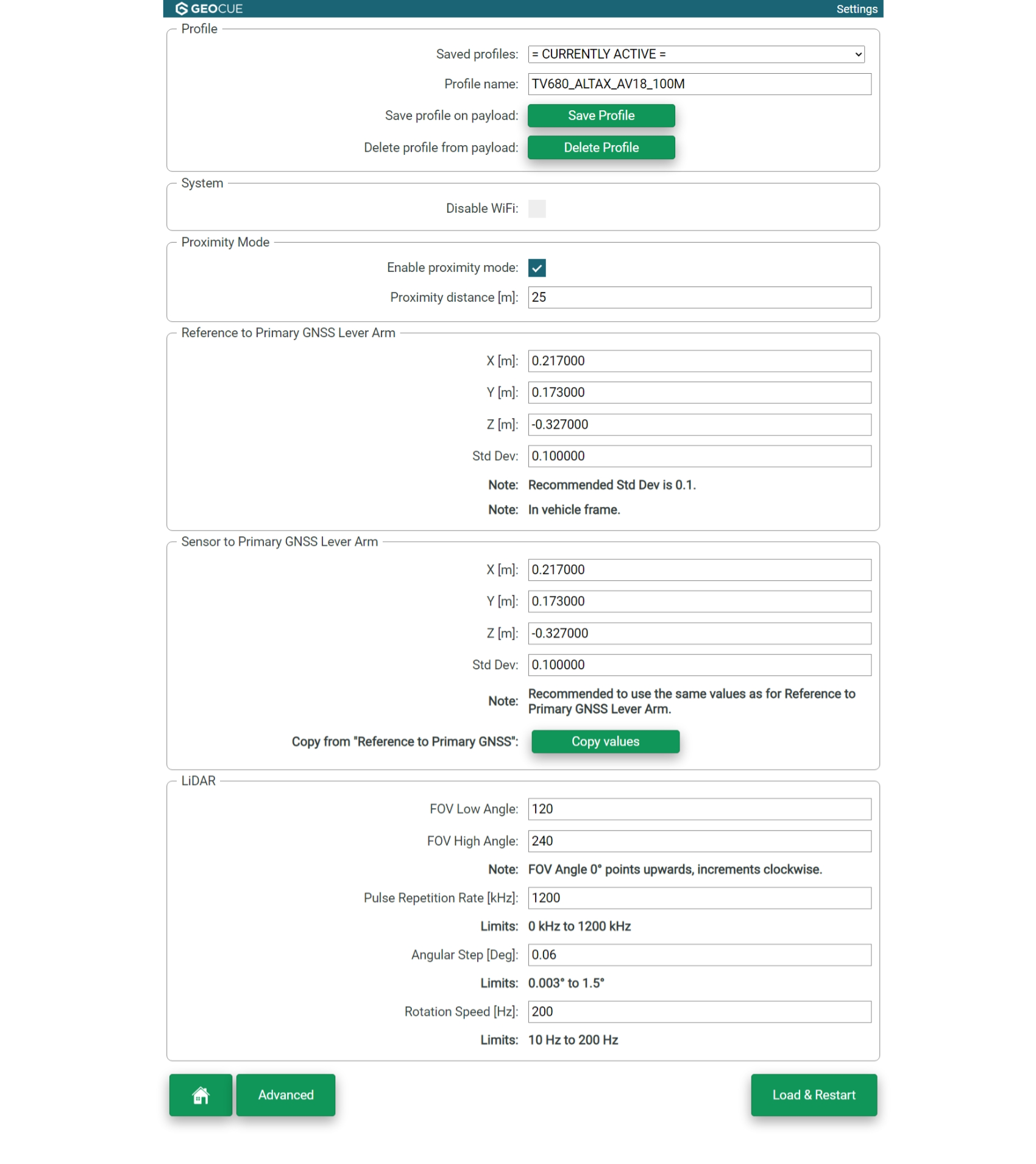
Table of Contents
TrueView Web UI User Guide 0<br>TrueView Web UI Main Screen 3<br>Additional TrueView Web UI main screen settings 4<br>Pilot logbook 5<br>Target storage 6<br>TrueView Web UI System settings 7<br>Profile 8<br>Saved profiles 8<br>System 8<br>Disable wifi 8<br>Save directly to UMS 8<br>Proximity Mode 8<br>Reference to Primary GNSS Lever Arm 8<br>Sensor to Primary GNSS Lever Arm 9<br>LIDAR 9<br>Home 9<br>Advanced 10<br>load & restart 10<br>Advanced System settings 11<br>Profile 11<br>GNSS – Aerial and Mobile Mapping Settings 12<br>Static data collection timeout 12<br>Antenna Type 12<br>GNSS – Mobile Mapping Settings 12<br>Motion Type 12<br>Enable DMI 12<br>DMI Type 12<br>DMI Scale Factor 13<br>DMI Scale Factor Standard Deviation 13<br>Camera 13<br>Disable Camera 13<br>Trigger Interval 13<br>Establish a connection 14<br>Wi-Fi Connection 14<br>Ethernet connection 14<br>Direct access to internal memory 16<br>Mobile Mapping – Base Maps 17<br>Support 20<br>List of tables 21<br>List of figures 21<br><br><br>